Tuesday, October 18, 2016

Fog Computing

Fog Computing and the Internet of Things

The Internet of Things (IoT) is generating an unprecedented volume and variety of data. But by the time the data makes its way to the cloud for analysis, the opportunity to act on it might be gone. High-speed data processing, analytics and shorter response times are becoming more necessary than ever before. The term fog computing, coined by Cisco, refers to the need for bringing the advantages and power of cloud computing closer to where the data is being generated and acted upon. Fog computing reduces the amount of data that is transferred to the cloud for processing and analysis, while also improving security.
  • Analyzes the most time-sensitive data at the network edge, close to where it is generated instead of sending vast amounts of IoT data to the cloud.
  • Acts on IoT data in milliseconds, based on policy.
  • Sends selected data to the cloud for historical analysis and longer-term storage.

What IoT Means to Business
The IoT speeds up awareness and response to events. In industries such as manufacturing, oil and gas, utilities, transportation, mining, and the public sector, faster response time can improve output, boost service levels, and increase safety.
Imagine it: On a factory floor, a temperature sensor on a critical machine sends readings associated with imminent failure. A technician is dispatched to repair the machine in time to avoid a costly shutdown. In oil and gas exploration, sensors on oil pipelines register a pressure change. In response, pumps automatically slow down to avert a disaster. In utilities, ruggedized cameras at remote field substations detect an intruder and alert security officers. Almost instantaneous analysis reveals similar events at other substations, automatically raising the alert to the highest level.
Connecting new kinds of things to the Internet also creates new business opportunities. Examples include pay-as-you-drive vehicle insurance, lighting-as-a-service, and machine-as-a-service (Maas).

What IoT Means to Infrastructure
Capitalizing on the IoT requires a new kind of infrastructure. Cloud models are not designed for the volume, variety, and velocity of data that the IoT generates. Billions of previously unconnected devices are generating more than two exabytes of data each day. Moving all data from the network edge to the data center for processing adds latency. Traffic from thousands of devices soon outstrips bandwidth capacity. Moreover, having every device connected to the cloud and sending raw data over the internet can have privacy, security and legal implications, especially when dealing with sensitive data that is subject to separate regulations in different countries.
Some are machines that connect to a controller using industrial protocols, not IP. Before this information can be sent to the cloud for analysis or storage, it must be translated to IP.
Compounding the challenge, IoT devices generate data constantly, and often analysis must be very rapid. This is especially true in scenarios such as telemedicine and patient care, where milliseconds can have fatal consequences. The same can be said about vehicle to vehicle communications, where the prevention of collisions and accidents can't afford the latency caused by the roundtrip to the cloud server. The cloud paradigm is like having your brain command your limbs from miles away - it won't help you where you need quick reflexes.
Handling the volume, variety, and velocity of IoT data requires a new computing model. The main requirements are to:
  • Minimize latency: Milliseconds matter when you are trying to prevent manufacturing line shutdowns or restore electrical service. Analyzing data close to the device that collected the data can make the difference between averting disaster and a cascading system failure.
  • Conserve network bandwidth: Offshore oilrigs generate 500 GB of data weekly. Commercial jets generate 10 TB for every 30 minutes of flight. It is not practical to transport vast amounts of data from thousands or hundreds of thousands of edge devices to the cloud. Nor is it necessary, because many critical analyses do not require cloud-scale processing and storage.
  • Address security concerns: IoT data needs to be protected both in transit and at rest. This requires monitoring and automated response across the entire attack continuum: before, during, and after.
  • Operate reliably: IoT data is increasingly used for decisions affecting citizen safety and critical infrastructure. The integrity and availability of the infrastructure and data cannot be in question.
  • Collect and secure data across a wide geographic area with different environmental conditions: IoT devices can be distributed over hundreds or more square miles. Devices deployed in harsh environments such as roadways, railways, utility field substations, and vehicles might need to be ruggedized. That is not the case for devices in controlled, indoor environments.
  • Move data to the best place for processing: Which place is best depends partly on how quickly a decision is needed. Extremely time-sensitive decisions should be made closer to the things producing and acting on the data. In contrast, big data analytics on historical data needs the computing and storage resources of the cloud.

Fog Computing
The fog extends the cloud to be closer to the things that produce and act on IoT data. These devices, called fog nodes, can be deployed anywhere with a network connection: on a factory floor, on top of a power pole, alongside a railway track, in a vehicle, or on an oil rig. Any device with computing, storage, and network connectivity can be a fog node. Examples include industrial controllers, switches, routers, embedded servers, and video surveillance cameras.
Analyzing IoT data close to where it is collected minimizes latency. It offloads gigabytes of network traffic from the core network, and it keeps sensitive data inside the network.

Examples of Fog Applications
Fog applications are as diverse as the Internet of Things itself. What they have in common is monitoring or analyzing real-time data from network-connected things and then initiating an action. The action can involve machine-to-machine (M2M) communications or human-machine interaction (HMI). Examples include locking a door, changing equipment settings, applying the brakes on a train, zooming a video camera, opening a valve in response to a pressure reading, creating a bar chart, or sending an alert to a technician to make a preventive repair. In transportation, it's helping semi-autonomous cars assist drivers in avoiding distraction and veering off the road by providing real-time analytics and decisions on driving patterns. It also can help reduce the transfer of gigantic volumes of audio and video recordings generated by police dashboard and video cameras. Cameras equipped with edge computing capabilities could analyze video feeds in real time and only send relevant data to the cloud when necessary. The possibilities are endless.
Production fog applications are rapidly proliferating in manufacturing, oil and gas, utilities, transportation, mining, and the public sector.

When to Consider Fog Computing
  • Data is collected at the extreme edge: vehicles, ships, factory floors, roadways, railways, etc.
  • Thousands or millions of things across a large geographic area are generating data.
  • It is necessary to analyze and act on the data in less than a second.

How Does Fog Work?
Developers either port or write IoT applications for fog nodes at the network edge. The fog nodes closest to the network edge ingest the data from IoT devices. Then-and this is crucial-the fog IoT application directs different types of data to the optimal place for analysis:
  • The most time-sensitive data is analyzed on the fog node closest to the things generating the data.
  • Data that can wait seconds or minutes for action is passed along to an aggregation node for analysis and action.
  • Data that is less time sensitive is sent to the cloud for historical analysis, big data analytics, and long-term storage.

What Happens in the Fog and the Cloud
Fog nodes:
  • Receive feeds from IoT devices using any protocol, in real time
  • Run IoT-enabled applications for real-time control and analytics, with millisecond response time
  • Provide transient storage, often 1-2 hours
  • Send periodic data summaries to the cloud

The cloud platform:
  • Receives and aggregates data summaries from many fog nodes
  • Performs analysis on the IoT data and data from other sources to gain business insight
  • Can send new application rules to the fog nodes based on these insights

Benefits of Fog Computing
  • Greater business agility: With the right tools, developers can quickly develop fog applications and deploy them where needed. Machine manufacturers can offer MaaS to their customers. Fog applications program the machine to operate in the way each customer needs.
  • Better security: Protect your fog nodes using the same policy, controls, and procedures you use in other parts of your IT environment. Use the same physical security and cybersecurity solutions.
  • Deeper insights, with privacy control: Analyze sensitive data locally instead of sending it to the cloud for analysis. IT team can monitor and control the devices that collect, analyze, and store data.
  • Lower operating expense: Conserve network bandwidth by processing selected data locally instead of sending it to the cloud for analysis.

References:

Saturday, March 2, 2013

How To Run C Compiler On Full Screen Mode In Windows 7.


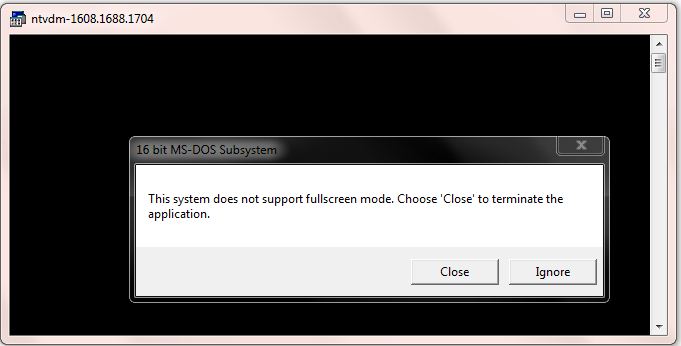
Hello to all my friends and visitors today i am going to share you how you can run Turbo c++ full screen mode in Windows 7 or Vista.Many of my friends face the problem of running Turbo C/C++ IDE on Windows 7 or Vista in Full Screen. Most of them are reluctant to upgrade their OS from Windows XP to Windows 7 due to this difficulty. Here are some easy steps to effectively accomplish this task of running C/C++ in Full Screen mode which no errors or confusions.When you try to run turbo c++ IDE on latest version of windows like Windows7 or Vista, you may get the error message that 'The system does not support full screen mode. Choose close to terminate the application'.'The problem is that turbo C is very old DOS program. It's better to move on to an up to date compiler like visual c++ Express which is free and you certainly would have a better experience.


How To Run C Compiler On Full Screen Mode In Windows 7.

Run Turbo c++ Full screen By using DOSBox software.

DOSBox is an  open source DOS emulator for BIOS, Linux, Mac OS X, OS/2, and Windows. This tool is primarily intended to play DOS games on Windows 7 but here we can use it run turbo C++ in Full screen mode.Now watch How to Run turbo C++ IDE in windows 7 with full screen.

Step 1:- Download the latest DOSBox package Here. (for windows)

Step 2:- Install and run the DOSBox.

Step 3:- Create New Folder in your drive where windows is Installed and give name it DOS.

How To Run C Compiler On Full Screen Mode In Windows 7.


Step 4:- Download Turbo C++ (v3.0) from Here.

Step 5:- Now Just extract the zipped file in C:/Dos (in your local drive) or install C++ in to that Dos Folder or copy the TC folder to Dos Folder.In order to run C++ without DOSBox you can simply run “C:/TC/BIN/TC.exe

Step 6:- Now Open Dosbox.exe from Desktop or from the installed directory.You will see a Dos screen with Z:\> as your local drive.

How To Run C Compiler On Full Screen Mode In Windows 7.


Step 7:- Now write ‘mount c c:\Dos’ and you will see a message saying Drive C is mounted as local directory. It means that your ‘C:\>Dos’ is your local directory.

Step 8:- Now write ‘C:’ and press enter. You will enter into C drive.

How To Run C Compiler On Full Screen Mode In Windows 7.


Step 9:- Write ‘C:\>cd TC’ which will take you into C:\>TC\ .

Step 10:- Then Write ‘C:\>TC\cd BIN’ which will take you into C:\>TC\BIN

Step 11:- Now Run TC.EXE by typing ‘C:\>TC\BIN\TC.exe’ or just ‘TC’ and pressing enter.

Well Done.


How To Run C Compiler On Full Screen Mode In Windows 7.


Step 12:- Now the Turbo C++ will open in DOSBox. Press ALT+ENTER  to toggle between full screen and mini screen.By applying the above trick, you can run C compiler on full screen mode in windows 7.
Create A Shortcut Of Turbo c++ Full screen Mode

Step 1:- Create a new Shortcut on Desktop (Right Click ->New Shortcut)

Step 2:- Click Next, and type in this path you can see below 


"C:\Program Files\DOSBox-0.74\DOSBox.exe" C:\Dos\TC\BIN\TC.EXE -noconsole -userconf

How To Run C Compiler On Full Screen Mode In Windows 7.


Step 3:- Click Next, and give a desired name to your shortcut.That’s it now you can C++ in Full Screen with just a Single Click without any hassles.

Reference :
http://www.dynamictrick.in/2012/10/how-to-run-c-compiler-on-full-screen.html

Thursday, July 26, 2012

Java Swing Calendar Control


Below is the Code for same


import java.awt.BorderLayout;
import java.awt.Color;
import java.awt.Dimension;
import java.awt.GridLayout;
import java.awt.event.ActionEvent;
import java.awt.event.ActionListener;
import javax.swing.JButton;
import javax.swing.JDialog;
import javax.swing.JFrame;
import javax.swing.JLabel;
import javax.swing.JPanel;

/*
 * To change this template, choose Tools | Templates
 * and open the template in the editor.
 */

/**
 *
 * @author SKarwatkar
 */
public class DatePicker {
 int month = java.util.Calendar.getInstance().get(java.util.Calendar.MONTH);
        int year = java.util.Calendar.getInstance().get(java.util.Calendar.YEAR);;
        JLabel l = new JLabel("", JLabel.CENTER);
        String day = "";
        JDialog d;
        JButton[] button = new JButton[49];

        public DatePicker(JFrame parent) {
                d = new JDialog();
                d.setModal(true);
                String[] header = { "Sun", "Mon", "Tue", "Wed", "Thur", "Fri", "Sat" };
                JPanel p1 = new JPanel(new GridLayout(7, 7));
                p1.setPreferredSize(new Dimension(430, 120));

                for (int x = 0; x < button.length; x++) {
                        final int selection = x;
                        button[x] = new JButton();
                        button[x].setFocusPainted(false);
                        button[x].setBackground(Color.white);
                        if (x > 6)
                                button[x].addActionListener(new ActionListener() {
                                        public void actionPerformed(ActionEvent ae) {
                                                day = button[selection].getActionCommand();
                                                d.dispose();
                                        }
                                });
                        if (x < 7) {
                                button[x].setText(header[x]);
                                button[x].setForeground(Color.red);
                        }
                        p1.add(button[x]);
                }
                JPanel p2 = new JPanel(new GridLayout(1, 3));
                JButton previous = new JButton("<< Previous");
                previous.addActionListener(new ActionListener() {
                        public void actionPerformed(ActionEvent ae) {
                                month--;
                                displayDate();
                        }
                });
                p2.add(previous);
                p2.add(l);
                JButton next = new JButton("Next >>");
                next.addActionListener(new ActionListener() {
                        public void actionPerformed(ActionEvent ae) {
                                month++;
                                displayDate();
                        }
                });
                p2.add(next);
                d.add(p1, BorderLayout.CENTER);
                d.add(p2, BorderLayout.SOUTH);
                d.pack();
                d.setLocationRelativeTo(parent);
                displayDate();
                d.setVisible(true);
        }

        public void displayDate() {
                for (int x = 7; x < button.length; x++)
                        button[x].setText("");
                java.text.SimpleDateFormat sdf = new java.text.SimpleDateFormat(
                                "MMMM yyyy");
                java.util.Calendar cal = java.util.Calendar.getInstance();
                cal.set(year, month, 1);
                int dayOfWeek = cal.get(java.util.Calendar.DAY_OF_WEEK);
                int daysInMonth = cal.getActualMaximum(java.util.Calendar.DAY_OF_MONTH);
                for (int x = 6 + dayOfWeek, day = 1; day <= daysInMonth; x++, day++)
                        button[x].setText("" + day);
                l.setText(sdf.format(cal.getTime()));
                d.setTitle("Date Picker");
        }

        public String setPickedDate() {
                if (day.equals(""))
                        return day;
                java.text.SimpleDateFormat sdf = new java.text.SimpleDateFormat(
                                "dd-MM-yyyy");
                java.util.Calendar cal = java.util.Calendar.getInstance();
                cal.set(year, month, Integer.parseInt(day));
                return sdf.format(cal.getTime());
        }
}


How To call Date Picker

 private void btnCalcActionPerformed(java.awt.event.ActionEvent evt) {
        txtComplDate.setText(new DatePicker(this).setPickedDate());
    }


Friday, March 19, 2010

Command prompts for Windows

Command prompts for Windows


Some of these command below can cause harmful an undesirable functions, leading to the formatting of your hard disk and data loss, while others will not run under Windows XP. As for Windows Vista the Run Tab is not visible in the start up menu. Windows Vista specific command prompts are not included.

Feel free to add any additional information and tips, you think necessary.

Here is a list of commands you can use under Microsoft Windows prearranged depending of their functionality :


Control Panel

  • CONTROL: opens the control panel window
  • CONTROL ADMINTOOLS: opens the administrative tools
  • CONTROL KEYBOARD: opens keyboard properties
  • CONTROL COLOUR: opens display properties.Appearance tab
  • CONTROL FOLDERS: opens folder options
  • CONTROL FONTS: opens font policy management
  • CONTROL INTERNATIONAL or INTL.CPL: opens Regional and Language option
  • CONTROL MOUSE or MAIN.CPL: opens mouse properties
  • CONTROL USERPASSWORDS: opens User Accounts editor
  • CONTROL USERPASSWORDS2 or NETPLWIZ: User account access restrictions
  • CONTROL PRINTERS: opens faxes and printers available
  • APPWIZ.CPL: opens Add or Remove programs utility tool
  • OPTIONALFEATURES: opens Add or Remove Windows component utility
  • DESK.CPL: opens display properties. Themes tab
  • HDWWIZ.CPL: opens add hardware wizard
  • IRPROPS.CPL: infrared utility tool
  • JOY.CP: opens game controllers settings
  • MMSYS.CPL: opens Sound and Audio device Properties. Volume tab
  • SYSDM.CPL: opens System properties
  • TELEPHON.CPL: Opens phone and Modem options
  • TIMEDATE.CPL: Date and Time properties
  • WSCUI.CPL: opens Windows Security Center
  • ACCESS.CPL: opens Accessibility Options
  • WUAUCPL.CPL: opens Automatic Updates
  • POWERCFG.CPL: opens Power Options Properties
  • AZMAN.MSC: opens authorisation management utility tool
  • CERTMGR.MSC: opens certificate management tool
  • COMPMGMT.MSC: opens the Computer management tool
  • COMEXP.MSC or DCOMCNFG: opens the Computer Services management tool
  • DEVMGMT.MSC: opens Device Manager
  • EVENTVWR or EVENTVWR.MSC: opens Event Viewer
  • FSMGMT.MSC: opens Shared Folders
  • NAPCLCFG.MSC: NAP Client configuration utility tool
  • SERVICES.MSC: opens Service manager
  • TASKSCHD.MSC or CONTROL SCHEDTASKS: opens Schedule Tasks manager
  • GPEDIT.MSC: opens Group Policy utility tool
  • LUSRMGR.MSC: opens Local Users and Groups
  • SECPOL.MSC: opens local security settings
  • CIADV.MSC: opens indexing service
  • NTMSMGR.MSC: removable storage manager
  • NTMSOPRQ.MSC: removable storage operator requests
  • WMIMGMT.MSC: opens (WMI) Window Management Instrumentation
  • PERFMON or PERFMON.MSC: opens the Performance monitor
  • MMC: opens empty Console
  • MDSCHED: opens memory diagnostics tools
  • DXDIAG: opens DirectX diagnostics tools
  • ODBCAD32: opens ODBC Data source Administrator
  • REGEDIT or REGEDT32: opens Registry Editor
  • DRWTSN32: opens Dr. Watson
  • VERIFIER: opens Driver Verifier Manager
  • CLICONFG: opens SQL Server Client Network Utility
  • UTILMAN: opens Utility Manager
  • COLORCPL: opens color management
  • CREDWIZ: back up and recovery tool for user passwords
  • MOBSYNC: opens Synchronization center
  • MSCONFIG: opens System Configuration Utility
  • SYSEDIT: opens System Configuration Editor (careful while using this command)
  • SYSKEY: Windows Account Database Security management (careful while using this command)

Windows utility and applications

  • EPLORER: Opens windows Explorer
  • IEXPLORER: Opens Internet explorer
  • WAB: opens Contacts
  • CHARMAP: opens Character Map
  • WRITE: opens WordPad
  • NOTEPAD: opens Notepad
  • CALC: opens Calculator
  • CLIPBRD: opens Clipbook Viewer
  • WINCHAT: opens Microsoft Chat Interface
  • SOUNDRECORDER: opens sound recording tool
  • DVDPLAY: run CD or DVD
  • WMPLAYER: opens Windows Media Player
  • MOVIEMK: Opens untitled Windows Movie Maker
  • OSK: opens on-screen Keyboard
  • MAGNIFY: opens Magnifier
  • WINCAL: opens Calendar
  • DIALER: opens phone Dialer
  • EUDCEDIT: opens Private Character Editor
  • NDVOL: opens the mixer volume
  • RSTRUI : opens Tool System Restore (For Vista only)
  • %WINDIR%\SYSTEM32\RESTORE\rstrui.exe: opens Tool System Restore (for XP only).
  • MSINFO32: Opens the System Information
  • MRT : launches the utility removal of malware.
  • Taskmgr : Opens the Windows Task Manager
  • CMD: opens a command prompt
  • MIGWIZ: Opens the tool for transferring files and settings from Windows (Vista only)
  • Migwiz.exe: Opens the tool for transferring files and settings from Windows (for XP only)
  • SIDEBAR: Open the Windows (Vista only)
  • Sigverif : Opens the tool for verification of signatures of files
  • Winver : Opens the window for your Windows version
  • FSQUIRT: Bluetooth Transfer Wizard
  • IExpress opens the wizard for creating self-extracting archives. Tutorial HERE
  • MBLCTR: opens the mobility center (Windows Vista only)
  • MSRA : Opens the Windows Remote Assistance
  • Mstsc : opens the tool connection Remote Desktop
  • MSDT: opens the diagnostic tools and support Microsoft
  • WERCON: opens the reporting tool and solutions to problems (for Vista only)
  • WINDOWSANYTIMEUPGRADE: Enables the upgrade of Windows Vista
  • WINWORD : opens Word (if installed)
  • PRINTBRMUI : Opens migration wizard printer (Vista only)

Disk management

  • DISKMGMT.MSC: opens disk management utility
  • CLEANMGR: opens disk drive clean up utility
  • DFRG.MSC: opens disk defragmenter
  • CHKDSK: complete analysis of disk partition
  • DISKPART: disk partitioning tool

Connection management

  • IPCONFIG: list the configuration of IP addresses on your PC (for more information type IPCONFIG/? in the CMD menu)
  • INETCPL.CPL: opens internet properties
  • FIREWALL.CPL: opens windows firewall
  • NETSETUP.CPL: opens network setup wizard

Miscellaneous commands

  • JAVAWS: View the cover of JAVA software (if installed)
  • AC3FILTER.CPL: Opens the properties AC3 Filter (if installed)
  • FIREFOX: Mozilla launches Firefox (if installed)
  • NETPROJ: allow or not connecting to a network projector (For Vista only)
  • LOGOFF: closes the current session
  • SHUTDOWN: shut down Windows
  • SHUTDOWN-A: to interrupt Windows shutdown
  • %WINDIR% or %SYSTEMROOT%: opens the Windows installation
  • %PROGRAMFILES%: Opens the folder where you installed other programs (Program Files)
  • %USERPROFILE%: opens the profile of the user currently logged
  • %HOMEDRIVE%: opens the browser on the partition or the operating system is installed
  • %HOMEPATH%: opens the currently logged user C: \ Documents and Settings \ [username]
  • %TEMP%: opens the temporary folder
  • VSP1CLN: deletes the cache for installation of the service pack 1 for Vista
  • System File Checker (Requires Windows CD if the cache is not available):
    • SFC / scannow: immediately scans all system files and repairs damaged files
    • SFC / VERIFYONLY: scans only those files system
    • SFC / Scanfil = "name and file path": scans the specified file, and repaired if damaged
    • SFC / VERIFYFILE = "name and file path": Scans only the file specified
    • SFC / scanonce: scans the system files on the next restart
    • SFC / REVERT: return the initial configuration (For more information, type SFC /? In the command prompt CMD.

Tuesday, March 2, 2010

Chat with Friends through ms dos Command Prompt

Chat with Friends through ms dos Command Prompt :-


1) All you need is your friend's IP Address and your Command Prompt.

2) Open Notepad and write this code as it is.....!

@echo off
:A
Cls
echo MESSENGER
set /p n=User:
set /p m=Message:
net send %n% %m%
Pause
Goto A


3) Now save this as "Messenger.Bat".

4) Open Command Prompt.

5) Drag this file (.bat file) over to Command Prompt and press Enter.

6) You would then see something like this:


7) Now, type the IP Address of the computer you want to contact and press enter
You will see something like this:


8) Now all you need to do is type your message and press Enter.
Start Chatting.......!

Thursday, January 28, 2010